Team Management
Manage your team, set permissions, and collaborate effectively with invitation links and role-based access.
Overview
Simplistica uses a team-based model where documents belong to teams, and members have specific roles that determine their permissions.
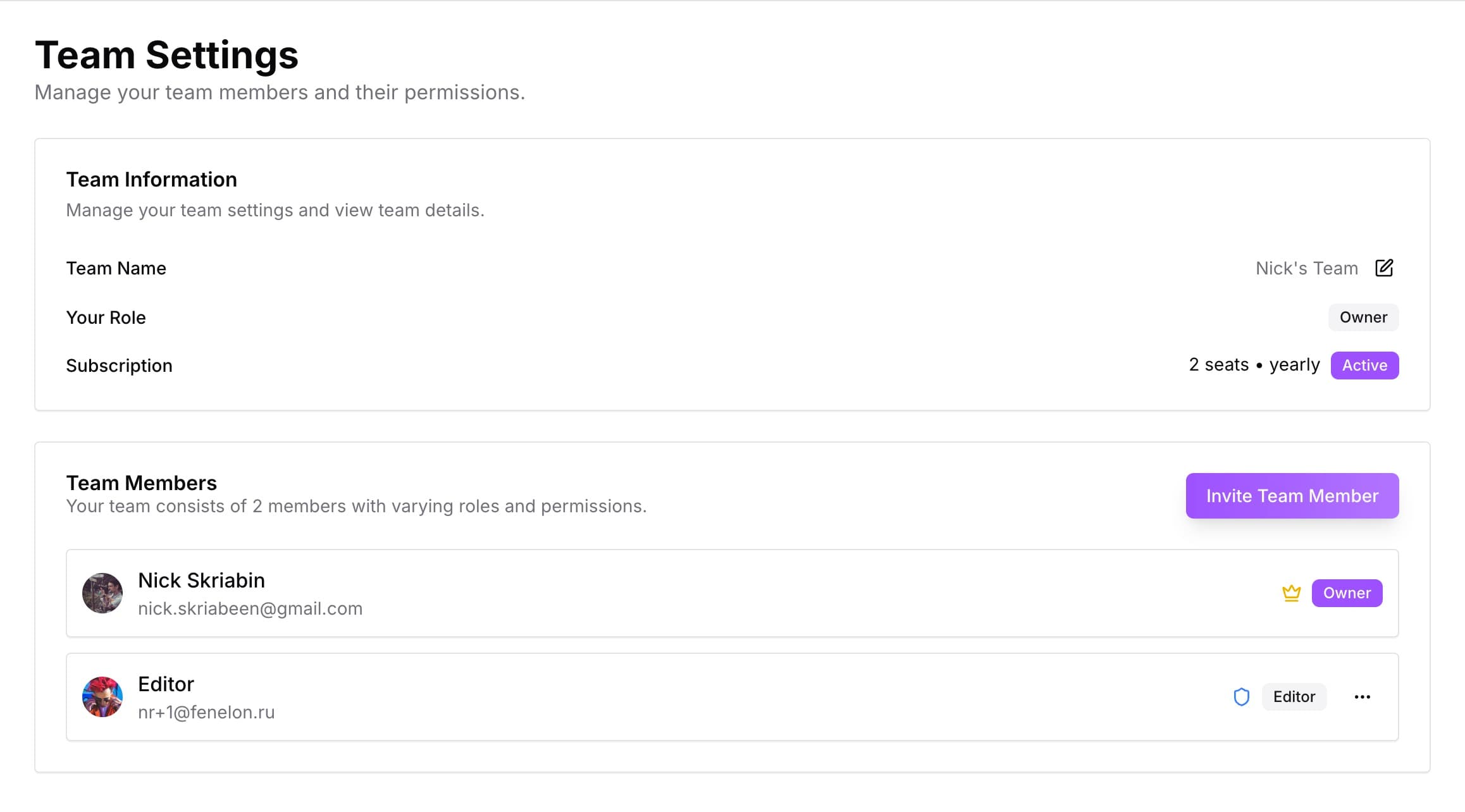
Team management interface showing member list, roles, and invitation link management
Team Structure
One team per workspace
Initially, with potential for expansion
Multiple members
With different roles and permissions
Shared documents
Accessible to all team members
Role-based permissions
For security and access control
Team Roles
👑 Owner
Full control
Over team and documents
Manage members
And invitations
Configure settings
And terminology
Delete team
And all content
✏️ Editor
Create, edit, delete
Documents
Export
Documents to various formats
Use AI features
For analysis
Cannot manage
Team settings
👀 Viewer
Read-only access
To documents
Export
Documents (read-only)
Cannot edit
Or create documents
Cannot access
Team settings
Inviting Team Members
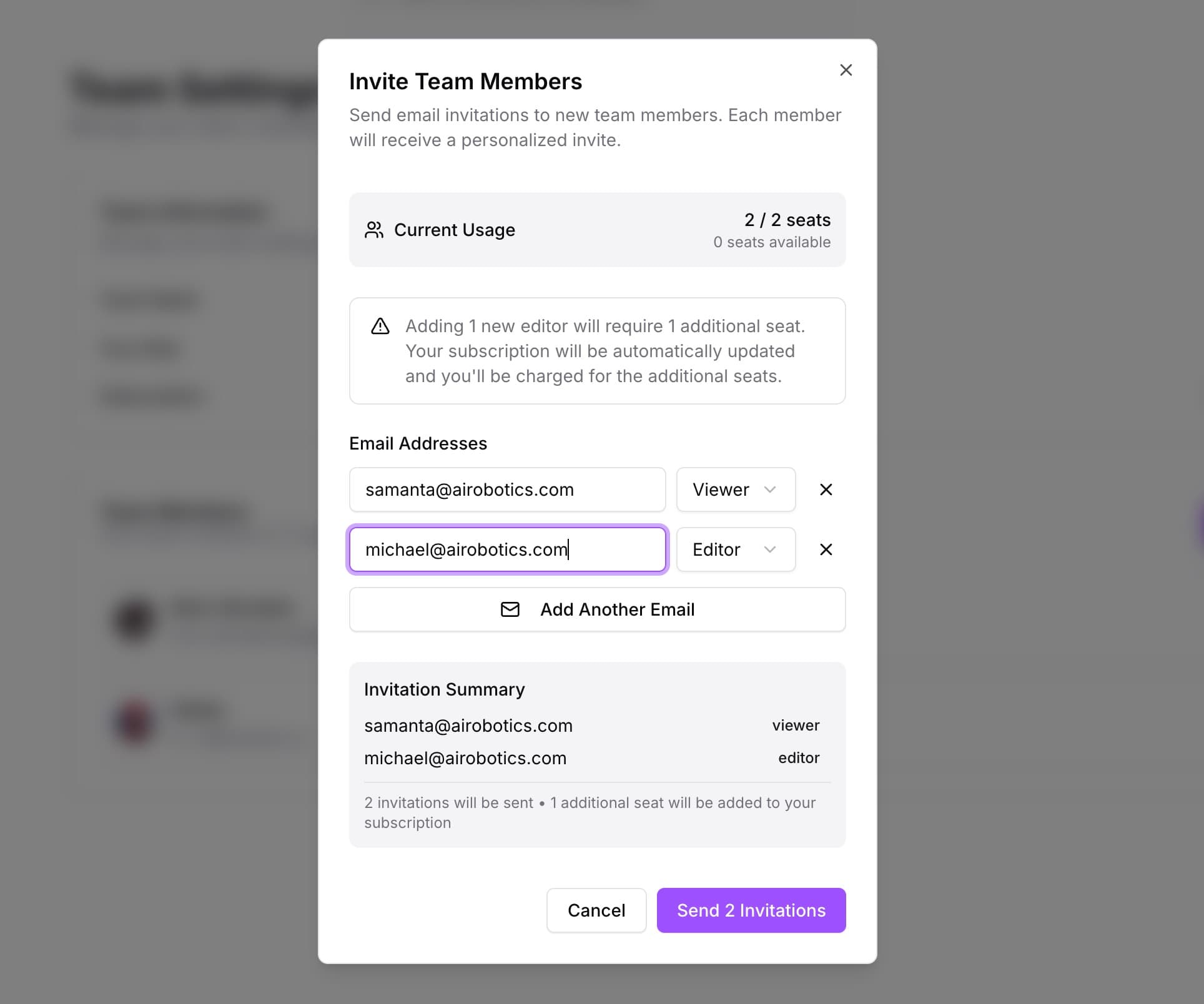
Generate Invitation Links
Link Management
Old links become invalid
When regenerated
Track active invitations
In member list
Revoke access
By removing members
One-time links
Cannot be shared
Personal invite links
Each team member receives one
Best Practices
Link Usage
Use viewer links
For stakeholders who need to review
Use editor links
For team members who need to contribute
Security
Regenerate links
Periodically for security
Communicate expectations
When sharing links
Managing Members
Add New Members
Generate invitation link
Share link
Member clicks link
Automatic team addition
Change Member Roles
Go to Settings
Find member
Click role dropdown
Save changes
Remove Members
Go to Settings
Find member
Click 'Remove'
Confirm removal
Member Status Overview
Team Settings
Team Information
Team name
Editable by owner
Team description
Optional
Creation date
And member count
Owner information
And contact
Security Settings
Invitation link regeneration
For security
Member role management
For access control
Document access
Through team membership
Export permissions
Based on roles
Terminology Management
Team-specific terms
For consistency
Automatic highlighting
In documents
Definition tooltips
On hover
Category organization
For better management
Collaboration Features
Real-time Editing
Live cursors
Show where others are editing
User avatars
Next to cursors for identification
Color coding
For different team members
Presence indicators
Show who's online
Document Sharing
All team members
Can access team documents
Role-based permissions
Determine what they can do
No individual sharing
Everything is team-based
Export options
Available to all members
Communication
Mentions
Using @username in documents
Real-time notifications
For mentions
Document comments
For feedback
Activity tracking
For team awareness
Best Practices
Team Organization
Start with small team
And grow as needed
Use clear role definitions
For expectations
Regular communication
About team changes
Document team processes
For consistency
Security Management
Regenerate invitation links
Regularly
Review member access
Periodically
Use appropriate roles
For each member
Monitor team activity
For unusual patterns
Collaboration Workflow
Set clear expectations
For document ownership
Use terminology
For consistent language
Leverage AI features
For quality improvement
Regular team reviews
Of content and processes
Troubleshooting
Common Issues
Can't access documents
Check team membership and role
Invitation links not working
Regenerate new links
Role changes not taking effect
Refresh page or log out/in
Collaboration not working
Check internet connection and permissions
Member Management
Member can't join
Check invitation link validity
Wrong role assigned
Change role in team settings
Member removed accidentally
Re-invite with correct role
Access issues
Verify team membership and permissions
Security Concerns
Suspicious activity
Review member list and regenerate links
Unauthorized access
Remove member and regenerate links
Data breach
Contact support immediately
Lost invitation links
Generate new links and revoke old ones
Related Guides
Document Editor
Collaborate on documents effectively
AI Features
Use AI analysis for team content
Custom Terminology
Set up team terminology for consistency
Import & Export
Share documents with external stakeholders
👥 Team Tip: Use viewer links for stakeholders who need to review documents but don’t need to edit. This keeps your team organized and maintains document integrity.